Starch
Starch is an architecture toolkit for Unity: it keeps modules decoupled and makes the project's architecture structure visible. This manual is the toolkit's reference: each chapter covers one part.
The architecture graphs
The architecture graphs visualize the dependency structure your code actually has; the Rules tab checks it against rules you define.
- Graph — the reference structure drawn as nested folder boxes with arrows between them.
- Force — the same scan laid out by connection, so hubs and hidden clusters become visible.
- Rules — architecture decisions written as constraints that every scan checks.
The ScriptableObject types
The ScriptableObject types are the assets systems share data through instead of referencing each other; the dashboard tabs show them working during play.
- Events — GameEvent assets as cards that flash on raise and list their listeners.
- State — Variables and other state assets with live values, editable in place.
- Lists — RuntimeList entries as tables, one column per fact.
- Definitions — authored content as tables, with unreferenced and duplicated assets flagged.
Install
Requirements:
- Unity 6000.0 or newer.
- uGUI and the Input System; both install with Starch.
- The runtime types compile into player builds; the editor tooling never enters a build.
To install:
- 1. Get Starch from the Unity Asset Store.
- 2. In the editor, open Window ▸ Package Manager, select My Assets, find Starch and install it.
- 3. Open Tools ▸ Starch ▸ Architecture. The editor tools are all in this window; the Documentation tab contains this manual.
Getting Started
Open Tools ▸ Starch ▸ Architecture, select the Graph tab and press Rescan. Boxes are the folders of your project; an arrow from one to another means code in the first references code in the second. If scripts are missing or third-party code clutters the view, the Settings tab controls what the scan reads. Right-click an arrow and choose Forbid to make that dependency a rule violation from the next scan on.
Setup AI
Starch is built to make working with LLM coding agents such as Claude Code easier. An agent does not hold your whole game in context when it implements a feature, and what it cannot see it gets wrong. Variables, Events and the other ScriptableObject types are each module's input and output, so a feature needs the context of its own module and the assets it touches, not the whole project.
Because modules only meet through named assets, whether new code respects the architecture is a question the scanner can answer. Rules you encode in the Rules tab are checked on every scan, and the agent can call DependencyQuery.Violations() to catch its own breaks. With editor access through MCP for Unity, the agent queries the dependency structure instead of guessing. You verify the result in the dashboards during play instead of reading every line of wiring.
Paste this prompt into your agent's project instructions (CLAUDE.md, .cursorrules, or a system prompt):
This Unity project uses Starch, a ScriptableObject-based architecture toolkit. Default to these conventions when writing code. They are reliable heuristics, not absolutes — the project's hard constraints are whatever its team encoded in the Rules tab (DependencyQuery.Violations() reports breaks):

- Asset taxonomy: subclass Definition for authored data (what things ARE — items, enemies, effects; read-only at runtime); subclass RuntimeStateSO for live mutable state (the built-in Variables, StateSO<T> and RuntimeList<T> already do); GameEvent / GameEvent<T> are the message channels. FloatReference/IntReference/BoolReference/StringReference/Vector3Reference are serializable struct FIELDS for tunables, not assets.
- Prefer not to reference another system's scene objects directly. Communication defaults to ScriptableObject assets: GameEvent / GameEvent<T> channels for messages, Variables (FloatVariable, IntVariable, BoolVariable, StringVariable, Vector3Variable, RangedFloatVariable) for shared state, and RuntimeList<T> for populations of live objects.
- Components expose [SerializeField] fields for the SO channels they use, assigned in the inspector rather than found at runtime.
- Scene objects add themselves to RuntimeLists in OnEnable and remove themselves in OnDisable. Mark fields worth showing in the Lists table with [Fact]; implement IHasId when an entry's id must survive a save file.
- Raise events with eventAsset.Raise() or eventAsset.Raise(value). Listen with a GameEventListener component, or implement IGameEventListener<T> and Register/Unregister in OnEnable/OnDisable.
- Read and write shared values through variable.Value; subscribe to variable.OnChanged for reactions. Value resets to the authored initialValue every time play starts.
- Single-value "current X" state holders subclass StateSO<T>. Multi-field state containers subclass RuntimeStateSO, keep runtime fields [NonSerialized], call RecordStateChange(old, new) in mutations, and override ResetRuntimeState().
- New typed event payloads are generated via Tools > Starch > New Typed Event… (Event + UnityEvent + Listener trio).
- Prefer one observer component per data source: it reads the source and publishes SO Variables/Events; other systems read those SOs.
- Create new channel assets via Assets > Create > Starch > ...

Verify wiring with the Architecture window (Tools > Starch > Architecture): the Events tab shows event fires and listeners live, the State tab shows variable values live and lets you edit them during play, and the Rules tab reports architecture violations (also queryable from code via DependencyQuery.Violations()).
The query methods the agent can call:
Starch dependency queries — call from editor code, or via Unity MCP execute_code. All methods return plain strings.

using Starch.Deps.Editor;

DependencyQuery.Rescan();          // refresh the scan cache first
DependencyQuery.Summary("Name");   // dependency summary for one type/file
DependencyQuery.UsedBy("Name");    // who depends on this type/file
DependencyQuery.Uses("Name");      // what this type/file depends on
DependencyQuery.Refs("Name");      // both directions at once
DependencyQuery.Between("A","B");  // dependency paths from A to B
DependencyQuery.Resolve("Name");   // disambiguate a partial name
DependencyQuery.Violations();      // current rule violations
The window
The Architecture window (Tools ▸ Starch ▸ Architecture) shows how systems depend on each other, when events fire, and what shared state holds. It has nine tabs.
- Graph, Force and Rules read from a shared source scan of your project's C# and cover code structure.
- Events, State and Lists observe the runtime kit assets live during play.
- Definitions catalogs authored content.
- Settings controls what the scan reads, and Documentation contains this manual.
Graph
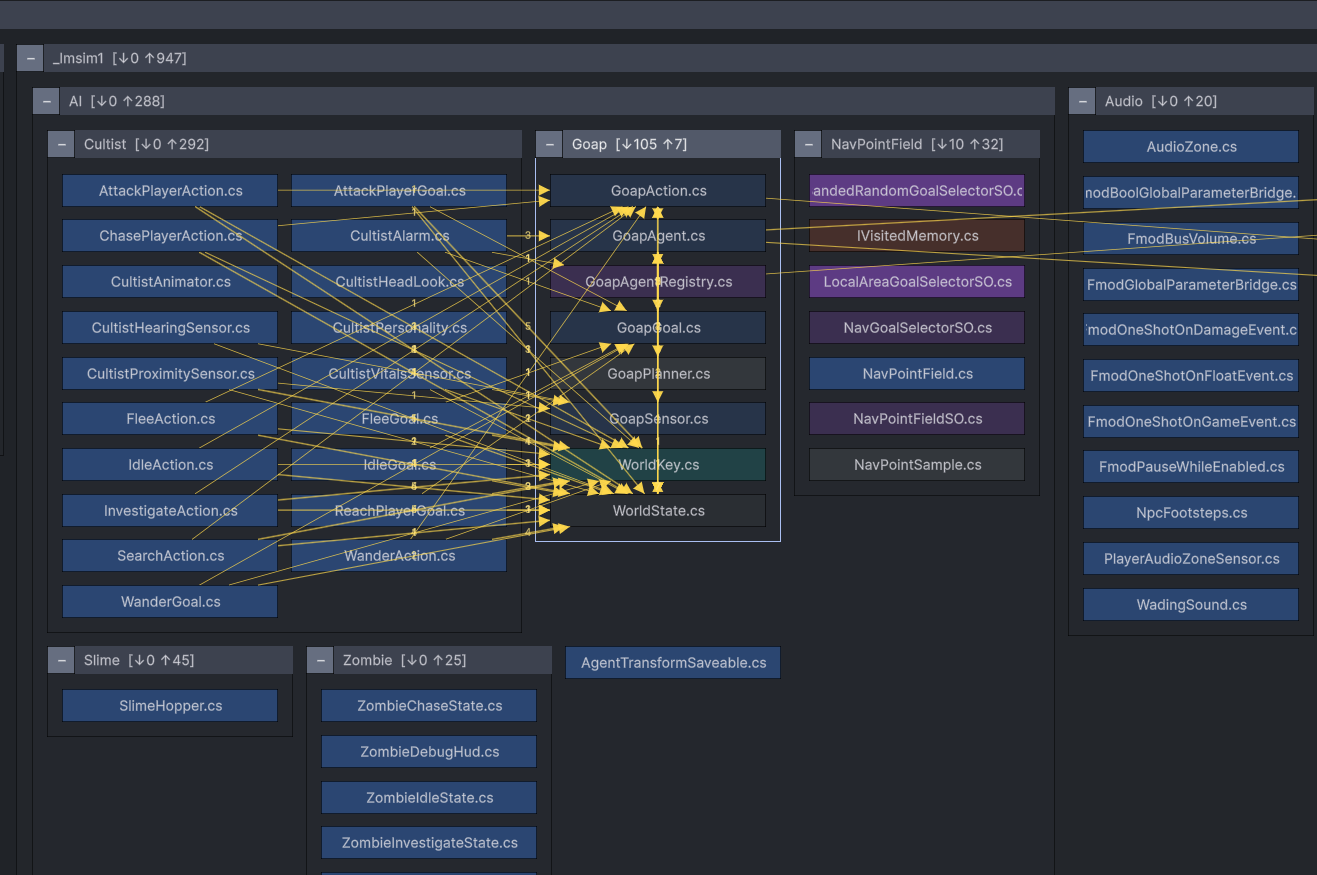
The Graph tab draws the reference structure of your code: the scanner reads the C# in Assets/ and draws the types it finds as boxes, nested the way your folders nest, with arrows between them. Expanding folders far enough reaches the individual scripts. The Rescan button in the footer re-reads the source after code changes.
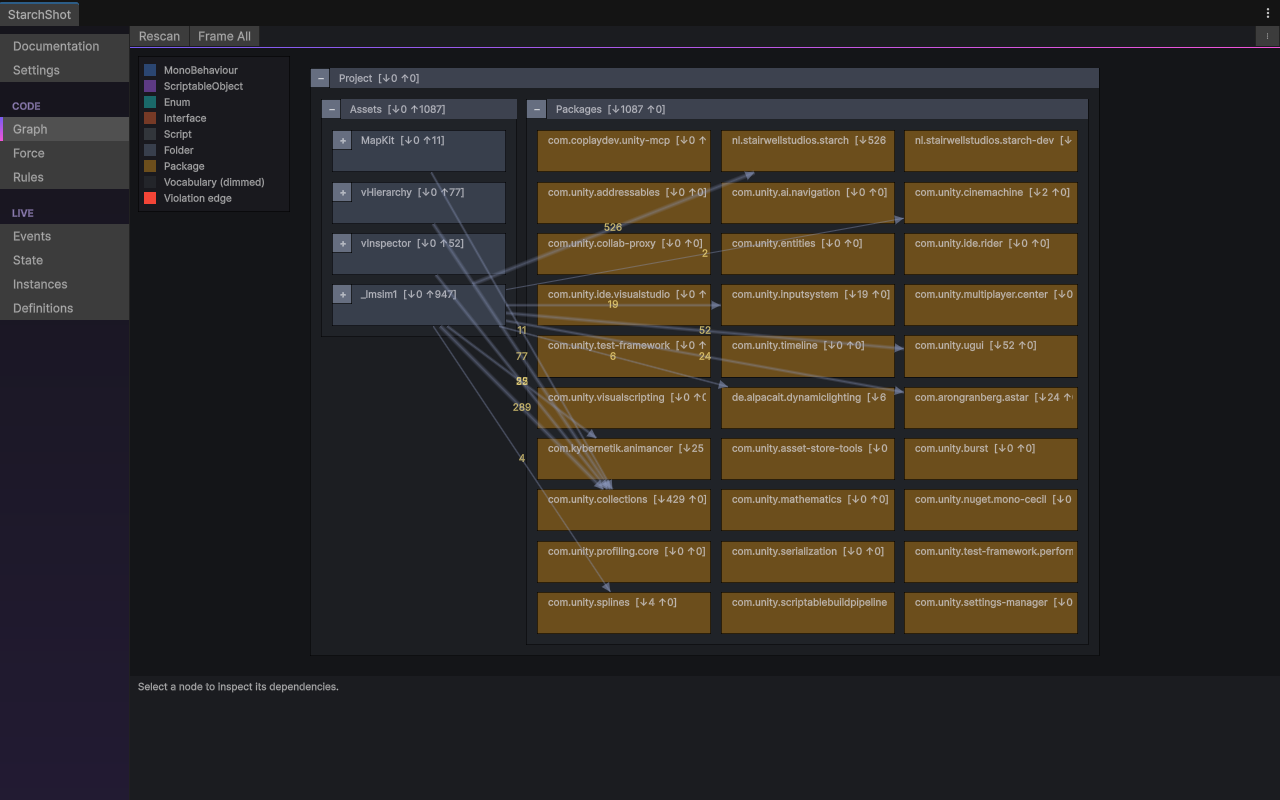
An arrow from A to B means code in A references code in B; one arrow can bundle many references. Red arrows are rule violations. Dimmed boxes are vocabulary: types that depend on nothing outside their own folder, and are therefore safe for anything to use. Box colors encode the type kind (MonoBehaviour, ScriptableObject, interface, enum, plain class); the Legend toggle shows the key. Registered packages appear as sealed boxes when Scan packages is on in the Settings tab.
Working in it:
- Everything starts collapsed. Click a folder header to expand it, and collapse what you are not working on to keep the view readable.
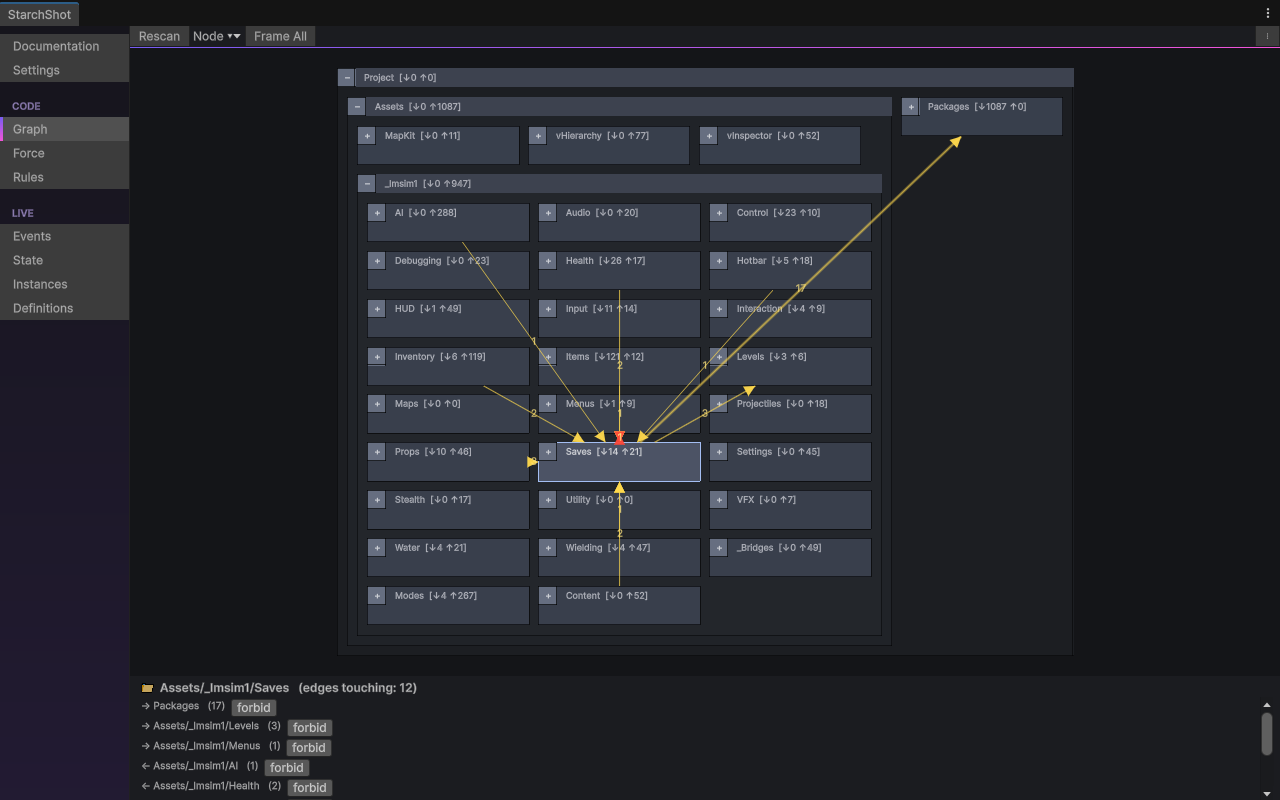
- Clicking a box selects it: a script pings in the Project window, and the panel below the view lists each edge touching the selection.
- Edge mode switches between no arrows, arrows for the selected box only, and all arrows. On larger projects, Selected is the usable default.
- Search filters boxes by name. Filters ▾ hides packages, core-marked folders, or whole type kinds.
- Node ▾ marks the selected folder as Core or Hidden, or overrides its detected kind. These marks are stored with the project and shared.
- Right-clicking an arrow shows Forbid A → B, which creates a pre-filled deny rule from that dependency.
- Pan with middle-drag or Alt-drag, zoom with the scroll wheel, and use Frame All to fit everything in view.
Force
The Force tab lays out the same scan as a physics simulation: connected scripts pull together, unconnected ones drift apart. Scripts group by their actual connections, independent of the folder they are in.
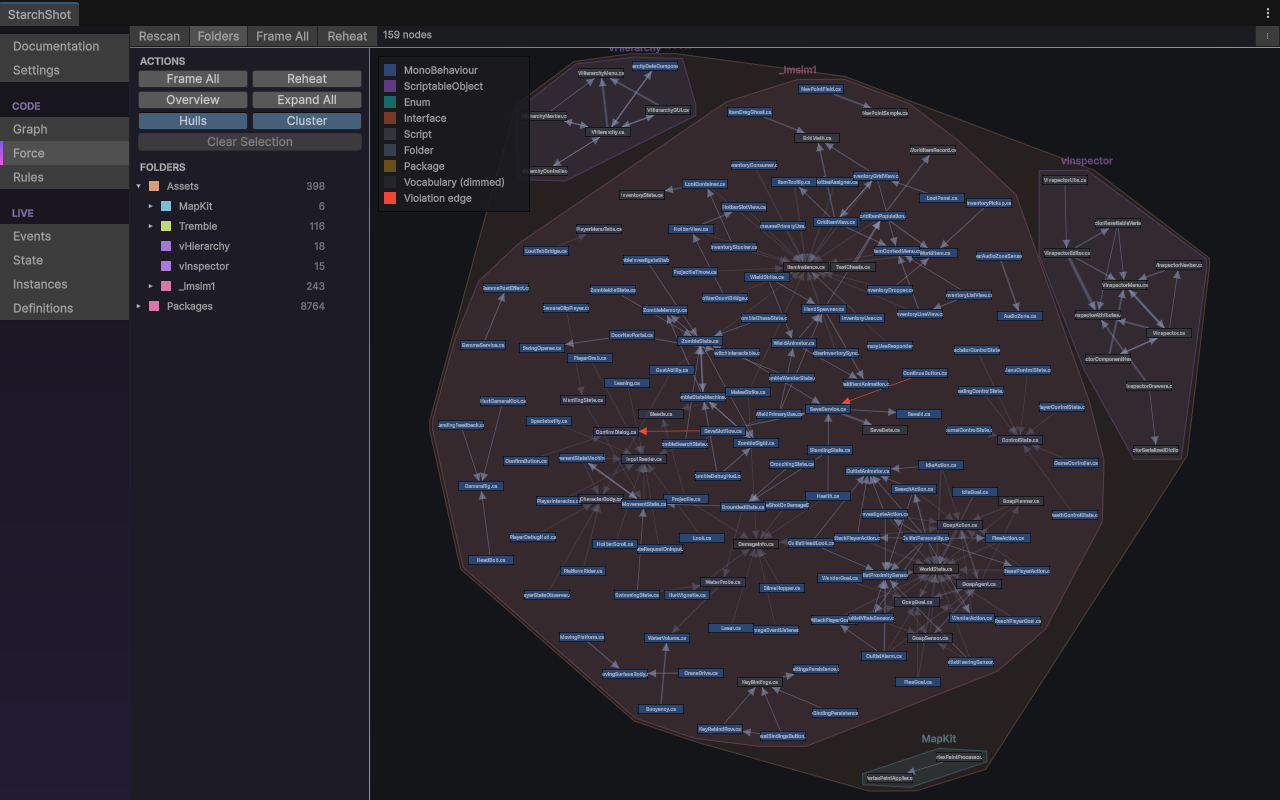
Three shapes are worth looking for. A node with edges fanning out in every direction is a hub: either a god class or a heavily used vocabulary type. A tight cluster that spans two folders is usually one feature split across them. A node with no edges at all is a dead-code candidate; the Orphans toggle shows and hides these. Red edges are rule violations, the same as in the Graph tab.
Working in it:
- Clicking a node selects it, highlights its edges, and pings the script in the Project window. Dragging a node out of a tangle shows what it is connected to.
- Colored hulls outline the scripts of one folder. The Hulls toggle turns them off, and Cluster adds a pull between scripts of the same folder.
- Folder nodes expand and collapse here too. Overview collapses everything back to the top level; Expand All opens everything.
- The Folders sidebar lists each folder with its hull color and script count. Clicking a row selects that folder; the arrow button drills into it.
- Right-clicking a node marks it Core or Hidden, the same marks as the Graph tab's Node menu.
- Reheat restarts the simulation after a rescan or when the layout settles badly. Frame All fits everything in view.
Rules
The Rules tab turns architecture decisions into constraints that every scan checks. Violations appear as a list that opens the offending line, and as red arrows in the Graph and Force views.
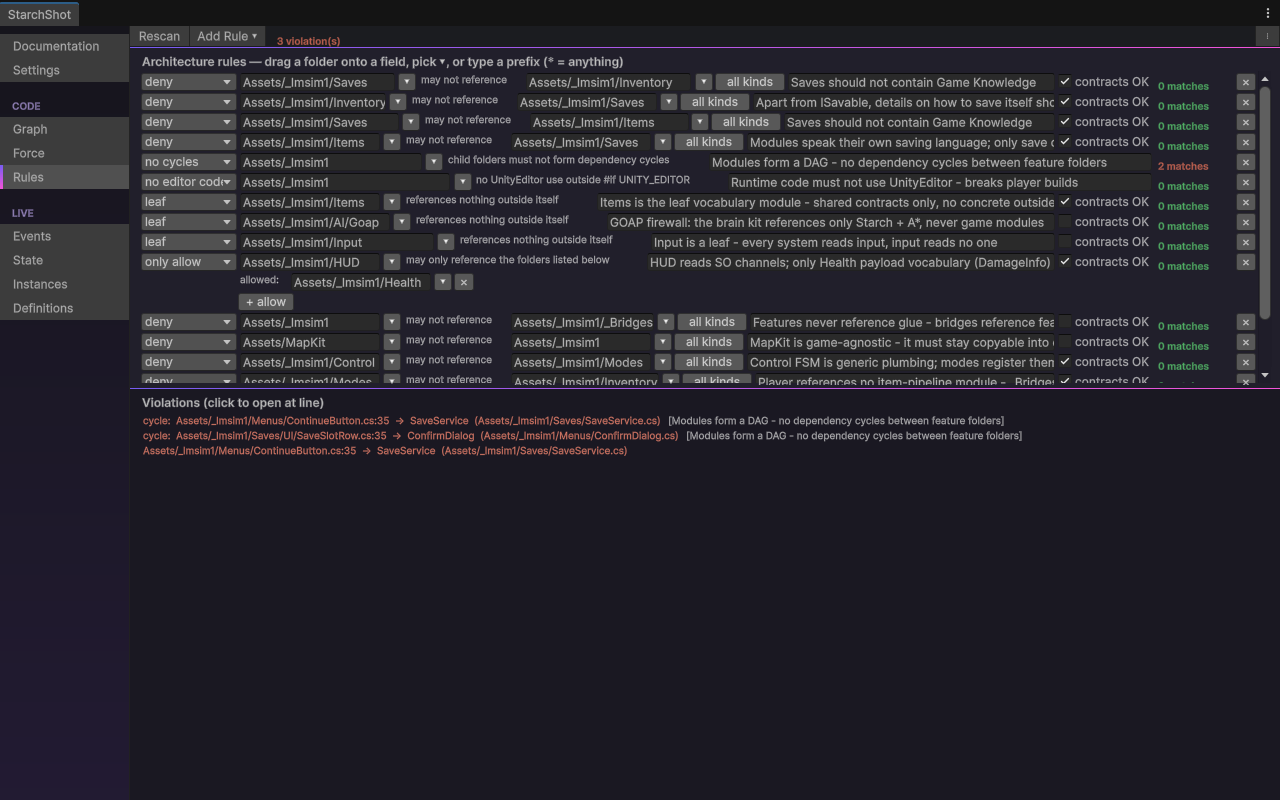
The rule types:
- Deny forbids one folder from referencing another. A deny rule can be limited to specific reference kinds (Uses, Inherits, Instantiates, StaticAccess, TypeOf, Attribute, GetComponent): forbid only Instantiates, and UI may hold AI references but never construct AI objects.
- Only allow lists the folders one folder may reference; everything else is a violation. This freezes a module's outgoing dependencies, so new coupling becomes a conscious decision.
- Leaf requires a folder to reference nothing outside itself. This is the rule for vocabulary modules.
- No cycles requires the child folders of a parent to be free of dependency cycles.
- No editor code forbids UnityEditor use in runtime code outside #if UNITY_EDITOR guards, which catches broken player builds at scan time instead of at build time.
Working in it:
- Add Rule ▾ creates a rule of a chosen type. For deny rules it is faster to right-click the offending arrow in the Graph or Force view and choose Forbid.
- Patterns are folder-path prefixes; * matches anything. The field's dropdown lists your folders, and dragging a folder from the Project window onto the field also fills it.
- contracts OK exempts references to interfaces, enums and ScriptableObject types, so modules may share vocabulary and channels while their concrete classes stay separated. Turn it off where a rule must be absolute.
- Each rule row shows a live match count against the current scan, which immediately shows whether a pattern matches what you intended. The note field records why the rule exists and is shown next to each violation.
- Rules are stored in ProjectSettings and version with the project.
Events
The Events tab shows the project's GameEvent assets as cards, live during play. Each card shows whether its event fired and which listeners are registered.
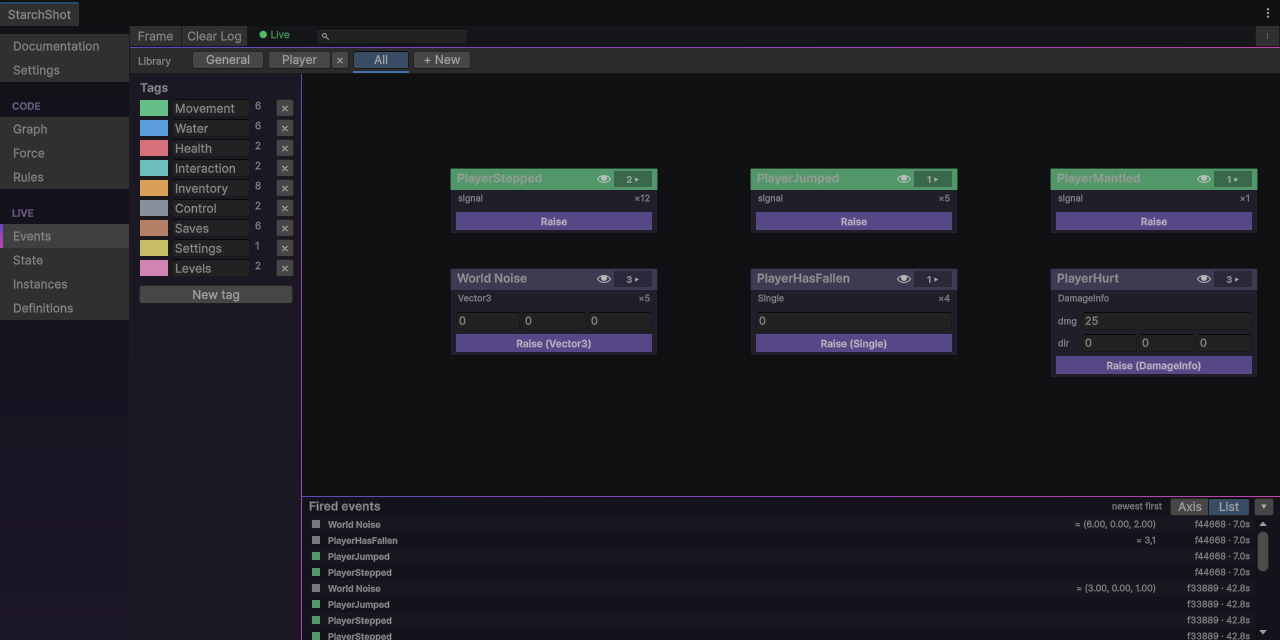
Each card flashes when its event raises and counts the raises. The listener badge lists the current listeners; clicking it opens the list, and picking a listener pings its GameObject in the scene. An empty badge on a card that flashed means the reaction never registered. The log records recent raises with payload, frame and time, as a zoomable timeline or a newest-first list; selecting cards filters the log to them.
The tab can also drive the game. The Raise button on a card fires the event without any gameplay involved; typed events take their payload from an input field on the card. This tests the listening side in isolation. Mute (the eye icon) hides a frequently firing event from the log.
Clicking a card selects and pings the event asset. Cards can be dragged to arrange them, and positions are stored per user. Right-click assigns a tag, and Auto Layout arranges cards by tag. Search filters by name; the library chips filter by library.
After you exit play mode the tab freezes rather than clearing, so the last session's log stays readable until the next play.
State
The State tab shows the project's runtime-state assets (Variables, RuntimeLists, StateSO subclasses, custom containers) as live cards during play.
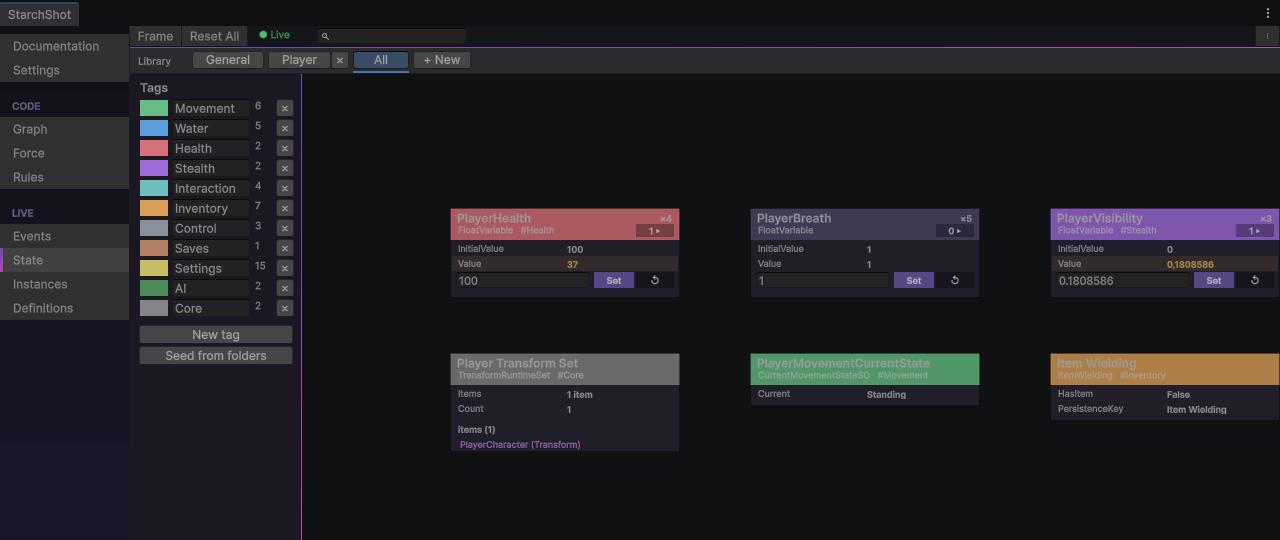
Cards show current values and flash with a change counter when they change. Rows turn amber when the live value differs from the authored initial. The subscriber badge counts what is subscribed to the value; clicking it lists the subscribers, and picking one pings its component. RuntimeList cards list their current members; clicking a member pings it in the scene. Selecting a card lists everything in scenes and prefabs that references the asset.
Kit Variables are editable in place: type a value and press Set, toggle a bool by clicking it, reset one variable with ↺ or everything with Reset All. Editing a value mid-play and watching the readers react tests the wiring directly: you can force near-death at 5 HP without taking damage.
Dragging, tagging and filtering cards works the same as on the Events tab. The tab freezes on play exit so final values stay inspectable.
Lists
The Lists tab shows each RuntimeList asset as a live table: one row per entry, an Id and a Name column, and one column per fact (the entry's own [Fact] members plus anything asserted onto it with SetFact).
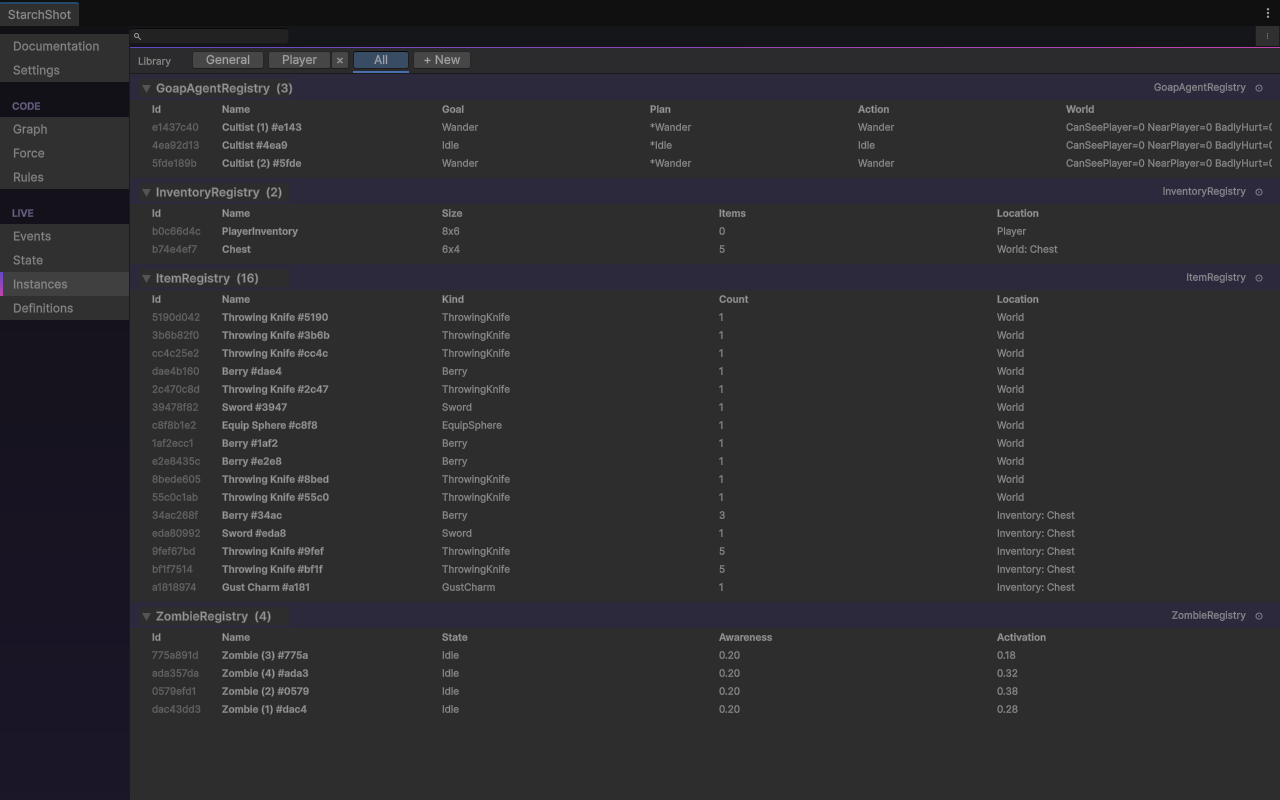
Rows appear and disappear as entries are added and removed. Each table folds behind a header with the list's name, entry count and a ping button that selects the list asset; the header flashes when the list changes. Search matches names, ids and fact values across all lists, and the library chips filter here too. Lists are empty in edit mode by design; they fill as things register during play.
Definitions
The Definitions tab lists the project's Definition assets and flags two things: assets nothing references, and accidental duplicates.
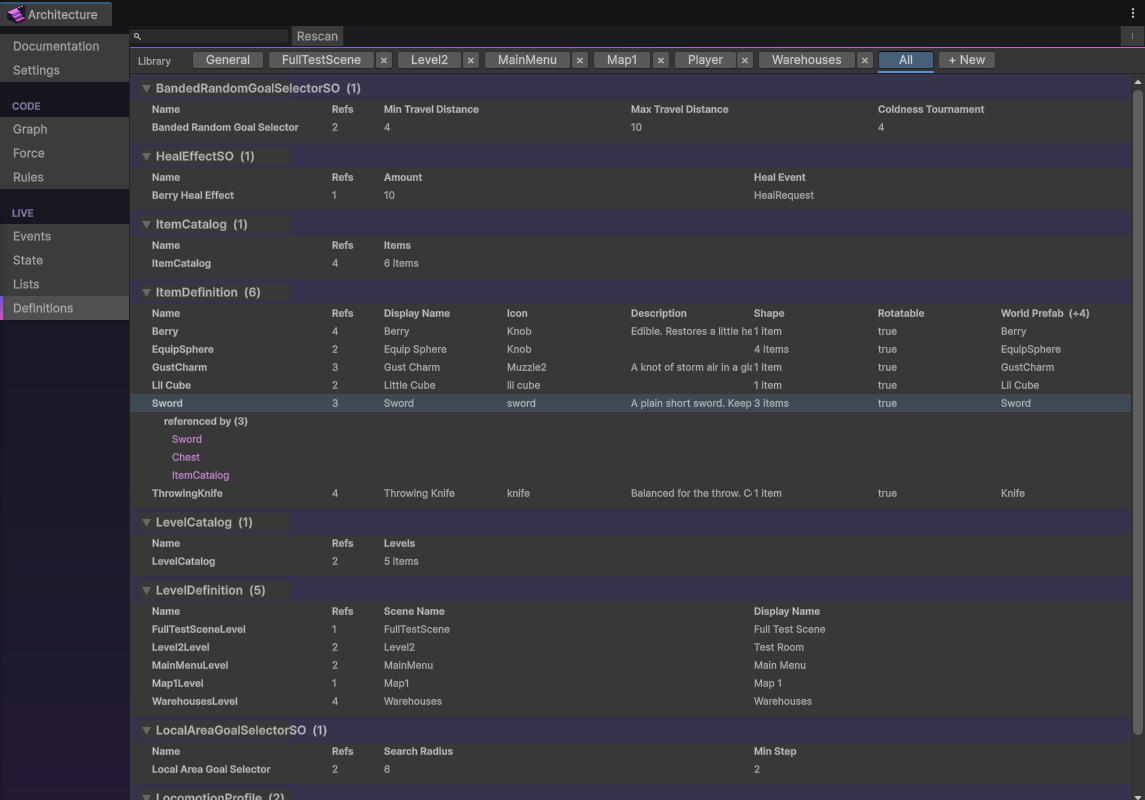
Assets are grouped by Definition class: one table per class, one row per asset, the class's serialized fields as columns. Tables fold behind a header with the class name and asset count. A wide class shows a capped set of field columns, and the last column header notes how many more exist. A class's table is its content set in one view, so a missing entry or an odd value stands out against the rows around it.
The Refs column counts what references each asset. orphan marks assets referenced by nothing in the project: either dead content to delete or content you forgot to wire. dup marks two assets of the same class sharing a name, which is usually an accidental copy. Clicking a row selects and pings the asset; the selected row expands into its referrer list, and clicking a referrer pings it.
Reference data comes from an asynchronous project scan, so the Refs column reads … until it finishes; the Rescan button refreshes after big changes. Search matches asset names, class names and field values. The library chips filter by library, the same as on the other boards.
Settings
The Settings tab controls what the scan reads, and the analysis and dashboard defaults.
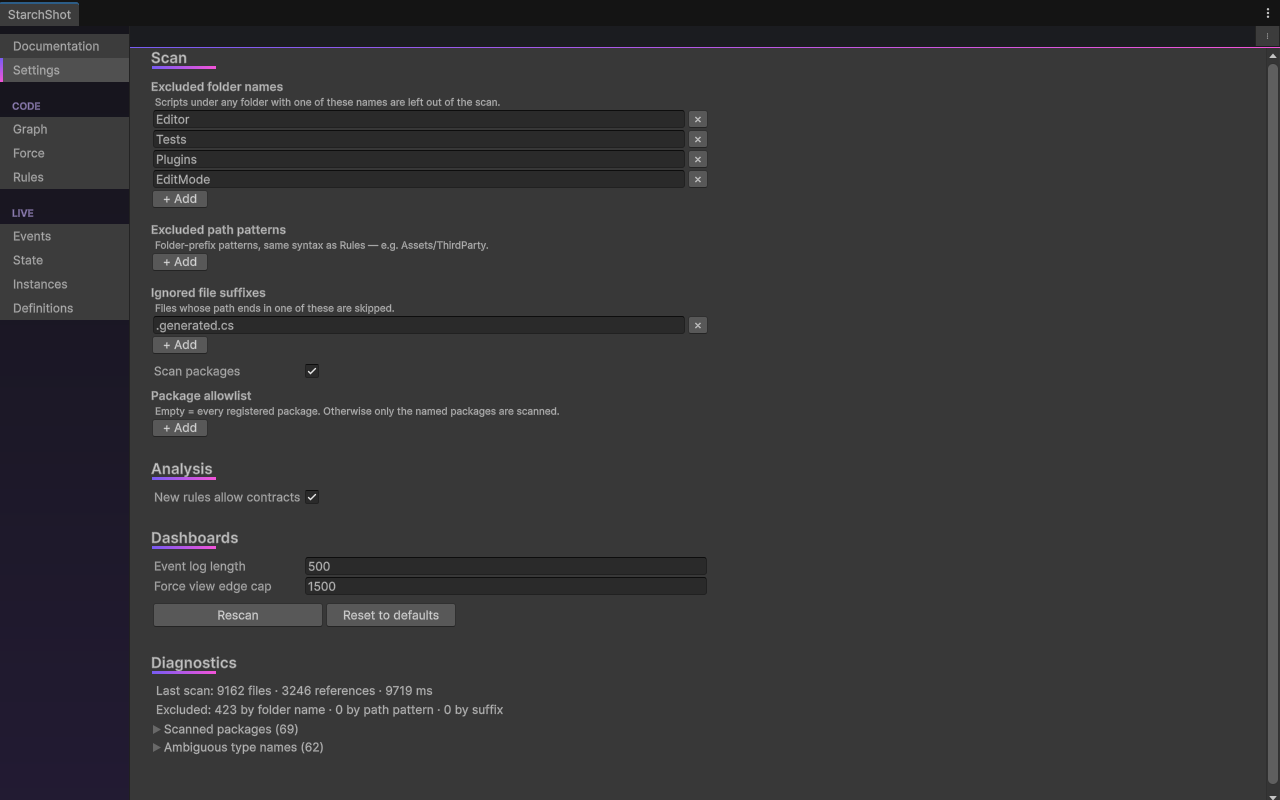
- Excluded folder names, excluded path patterns (folder prefixes, the same syntax as rules) and ignored file suffixes remove code from the scan.
- Scan packages includes registered packages as sealed, declaration-only nodes; the allowlist narrows it to named packages, and an empty allowlist means all of them.
- Under Analysis, one toggle sets whether new rules start with contracts OK enabled.
- Under Dashboards, the Events log length and the Force view's edge-draw cap can be raised or lowered.
Changing a scan setting marks the scan stale; the Rescan button in the footer applies it. The footer also shows scan diagnostics: file counts, timings, what the exclusions removed, and type names declared in more than one place, whose references produce no edges.
Variables
A Variable is one shared value (the player's health, the alert level, the score) as a ScriptableObject asset. The system that writes the value and the systems that read it reference the asset, not each other.
The types are FloatVariable, IntVariable, BoolVariable, StringVariable, Vector3Variable, ColorVariable, and RangedFloatVariable (a float with an authored min and max). For a value type not listed here, see Custom Variable types below.
Making one
Create the asset via Assets ▸ Create ▸ Starch ▸ Variables ▸ Float Variable, name it after the value it holds (for example PlayerHealth), and set its initial value in the Inspector. Each component that uses it declares a serialized field and gets the asset assigned in the Inspector:
[SerializeField] FloatVariable playerHealth;

void ApplyDamage(float amount) => playerHealth.Value -= amount;

void OnEnable()  => playerHealth.OnChanged += HandleHealthChanged;
void OnDisable() => playerHealth.OnChanged -= HandleHealthChanged;
Read and write through Value. Subscribe to OnChanged to react to changes instead of polling.
Behavior
- The value resets to the authored initialValue every time play starts, with domain reload on or off. A play session can never leak state into the next one.
- When a reaction amounts to invoking a method, add the matching listener component (FloatVariableListener and so on) instead of writing code; it invokes a UnityEvent when the value changes.
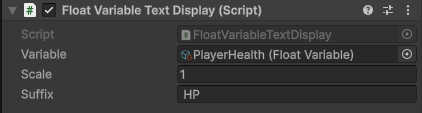
- Prebuilt display components (FloatVariableTextDisplay, FloatVariableSlider, BoolVariableToggle, and so on) bind a Variable to UI without code.
- The State tab shows Variables live during play and lets you edit values in place.
Custom Variable types
Every Variable is a subclass of StateSO<T>, so a Variable for another value type is one class:
[CreateAssetMenu(menuName = "Game/Double Variable")]
public class DoubleVariable : StateSO<double> { }Value, OnChanged, change recording and the play-mode reset are inherited. For state that is a container with several fields rather than one value, see Custom State.
Events
A GameEvent is a message channel as an asset: one system raises it, any number listen, and none of them reference each other. Adding a reaction later means adding a listener, not editing the raiser.
GameEvent carries no data; GameEvent<T> subclasses carry a typed payload (FloatEvent, IntEvent, BoolEvent, StringEvent, Vector2Event, Vector3Event, ColorEvent, TransformEvent, ColliderEvent, RigidbodyEvent).
Making one
Create the asset via Assets ▸ Create ▸ Starch ▸ Events ▸ Game Event, name it after the occurrence (for example OnPlayerDied), and assign it to the raising component:
[SerializeField] GameEvent onDoorOpened;
void Open() => onDoorOpened.Raise();

[SerializeField] FloatEvent onHealthChanged;
void Set(float hp) => onHealthChanged.Raise(hp);
There are two ways to listen:
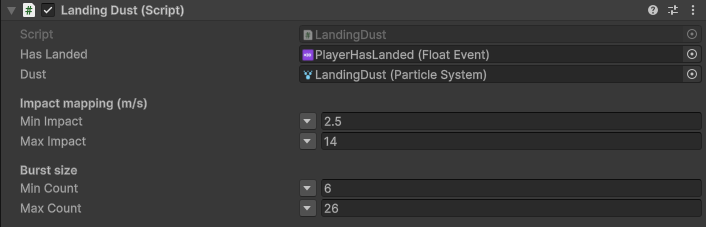
- Add a GameEventListener component on the object that should react, assign the event asset, and wire its UnityEvent in the Inspector. This needs no code.
- Implement IGameEventListener<T> and call Register in OnEnable and Unregister in OnDisable. Use this when the reaction is logic rather than a single method call.
The raising side has no-code options too: GameEventRaiser raises its event at a chosen lifecycle moment (Awake, OnEnable or Start), and ButtonGameEventRaiser raises it when its UI Button is clicked.
Custom event types
For a payload type with no built-in Event class, Tools ▸ Starch ▸ New Typed Event… generates the Event, UnityEvent and Listener classes for it. Subclassing GameEvent<T> directly also works:
[CreateAssetMenu(menuName = "Game/Damage Event")]
public class DamageEvent : GameEvent<DamageInfo> { }
The subclass alone gives a channel usable from code; the generator's extra classes are what make it wireable through a listener component in the Inspector.
RuntimeLists
A RuntimeList is a collection as an asset: entries add themselves while they exist, and any system reads the same asset. A Variable holds state that exists once; a RuntimeList holds state that exists many times (the live enemies, the items in the world, the spawn points).
Subclass RuntimeList<T> for the element type, create the asset, and let the members register themselves:
public class EnemyList : RuntimeList<Enemy> { }

[SerializeField] EnemyList activeEnemies;

void OnEnable()  => activeEnemies.Add(this);
void OnDisable() => activeEnemies.Remove(this);
A consumer iterates Items, reads Count, checks Contains, picks with GetRandom, and subscribes to OnAdded and OnRemoved. Because registration follows enable state, the list is always current. Like a Variable, a list empties when play starts and appears as a live card in the State tab. For plain scene objects there is a ready-made TransformRuntimeList with a TransformRuntimeListRegistrar drop-on component.
Identity
Every entry gets a stable id the moment it is added; the list generates one automatically. IdOf returns it, Find looks an entry up by it. A generated id lasts one session; when the id goes into a save file, the entry must own it: implement IHasId (one string property) and the list uses that id instead.
Facts
An entry describes itself by marking fields or properties with [Fact]; the Lists tab shows one column per marked member, read live:
public class Zombie : MonoBehaviour
{
    [Fact] ZombieState state;
    [Fact] float awareness;
    [Fact("HP")] float health;
}
Other systems attach notes an entry knows nothing about with SetFact (a container recording an item's location, for example) and read them back with FactsOf. OnFactChanged fires on a real change. Typed gameplay data stays in fields, read directly off the entry; facts are what the table shows and what outsiders assert.
For objects with no code of their own, the TrackedObject drop-on component carries a save-stable id and joins an ObjectList asset on enable.
References
A Reference is a serializable struct field that an Inspector toggle switches between an inline constant and a shared Variable asset. The component's code reads Value either way, so a tunable that starts as a plain number (a walk speed, a jump height) can become shared state later without changing the component.
[SerializeField] FloatReference walkSpeed;

void Move() => transform.position += direction * walkSpeed.Value * Time.deltaTime;
The types are FloatReference, IntReference, BoolReference, StringReference and Vector3Reference. Use a Reference for values that are private tunables today but might become shared state; use a Variable directly for values that are shared from the start.
Definitions
A Definition is one asset per kind of thing a game accumulates: items, enemies, effects, levels. The data describing what a sword is (name, icon, world prefab, stack limit) lives in the sword's Definition asset, and each system that needs it (the tooltip, the inventory cell, the pickup) references that one asset.
Live state stays out of it: where a particular sword is and how many are in a stack live on the instance object, in Variables, or in RuntimeLists. A Definition is read-only at runtime; nothing enforces this, it is the convention the split depends on.
[CreateAssetMenu(menuName = "Game/Item")]
public class ItemDefinition : Definition
{
    public string DisplayName;
    public Sprite Icon;
    public int StackLimit;
    public GameObject WorldPrefab;
}
Each item in the game is one ItemDefinition asset (Sword, Bandage, Key), created from the asset menu without new code. An inventory entry is then a pair: a reference to the definition plus the entry's own mutable fields.
public class ItemInstance
{
    public ItemDefinition Definition;
    public int Count;
}
The definition reference doubles as identity: two entries stack because they point at the same asset, and a save file records which asset an entry meant. Definitions also carry references to other assets (the prefab spawned in the world, the prefab shown in the hand, a list of effect assets run on use), so a definition is where a kind's data and its associated assets meet.
The Definition base class adds no behavior. Subclassing it declares an asset as authored content, and that declaration is what tooling reads: the Definitions tab lists the project's Definition assets, one table per Definition class, and flags the ones nothing references, which is where forgotten and dead content shows up.
Custom State
Some live state is a container with several fields rather than one value (a match state with a round number and a phase, a save-slot descriptor). A container like that should still reset between play sessions and show up in the State tab, which is what subclassing RuntimeStateSO gives it. For a single value of a custom type, subclass StateSO<T> instead; see Custom Variable types under Variables.
The subclass carries three obligations: mark runtime fields [NonSerialized] so Unity never persists them, call RecordStateChange(old, new) in each mutation so the State tab sees the change, and override ResetRuntimeState() to restore the starting state.
public class MatchState : RuntimeStateSO
{
    [NonSerialized] int _round;

    public int Round
    {
        get => _round;
        set { RecordStateChange(_round, value); _round = value; }
    }

    public override void ResetRuntimeState() => _round = 0;
}
Bring Your Own ScriptableObjects
The dashboards discover assets by interface, not by class. A project that already has its own ScriptableObject event or variable types can put them on the boards by implementing small contracts from the Starch namespace, without replacing anything.
- IGameEvent / IGameEvent<T> puts an asset on the Events tab with a card and a Raise button. Adding IEventIntrospection fills the listener list.
- IRuntimeState puts an asset on the State tab; its public readable properties become value rows. IStateValue adds reset and drift highlighting, IState<T> adds the inline edit row, and IStateIntrospection adds the subscriber badge.
- IRuntimeList puts an asset on the Lists tab as a table, with rows from Entries and columns from FactsOf.
- IDefinition puts an asset on the Definitions tab; serialized fields become table columns.
- IRuntimeResettable (included in IRuntimeState) gives the asset the automatic play-mode reset.
- PayloadDrawer<T> is an editor class that draws the inline payload input for events carrying T. Drawers exist for float, int, bool, string, Vector2, Vector3 and Color; subclass it in any Editor folder for your own types. Drawers are auto-discovered.
A minimal implementation, an event asset that forwards to an existing bus:
public class MyBusEvent : ScriptableObject, Starch.IGameEvent
{
    public void Raise()
    {
#if UNITY_EDITOR
        Starch.GameEventDebug.Record(this, null);
#endif
        MyBus.Publish(name);
    }
    public void Register(Starch.IGameEventListener l) { }
    public void Unregister(Starch.IGameEventListener l) { }
}
The interface alone makes the asset visible. The live pulses (flashes, counters, log entries) come from two editor-only calls your implementation makes when something happens: GameEventDebug.Record(this, value) inside your Raise, and VariableDebug.Record(this, oldValue, newValue) inside your setters. Wrap both in #if UNITY_EDITOR; they are stripped from builds. Skipping them costs only the pulses.
Grouping into libraries requires no code: right-click any card and assign a Library. Assignments are stored in ProjectSettings/StarchLibraries.json.
Storage
Starch stores its data in two places, split by whether the data is a project decision or a personal preference. Knowing the split tells you what to commit.
- ProjectSettings/Starch*.json holds rules, scan settings, graph curation and dashboard tags. Commit these; they are shared decisions.
- UserSettings/Starch*.json holds per-user view state: cameras, filters, card positions, muted events. Leave these unversioned.
With the standard Unity ignore templates this happens by default; the split only matters if your ignore file is custom.
Troubleshooting
For problems and questions, ask in the Starch Discord.